Quickstart for backing up Outlook data
When you start 'Backup Outlook' the first time,
you see the Start Screen of 'Backup
Outlook'.
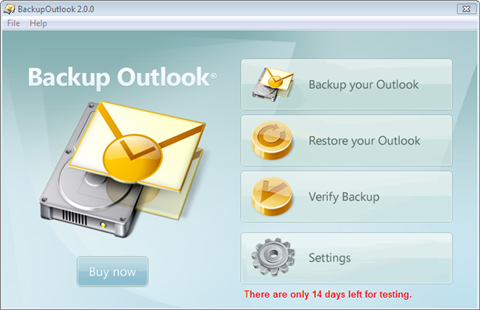
Click on 'Backup your Outlook' to open the backup job manager:
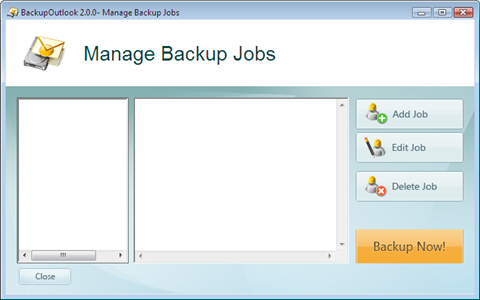
If you didn't add a backup job before then you see this wizard which leads you through the creation of a backup job:
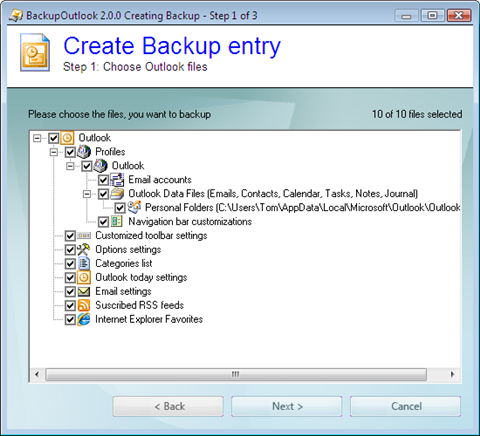
All entries are selected by default.
When you are ready with your selection, then click on 'Next'. to go to step 2.
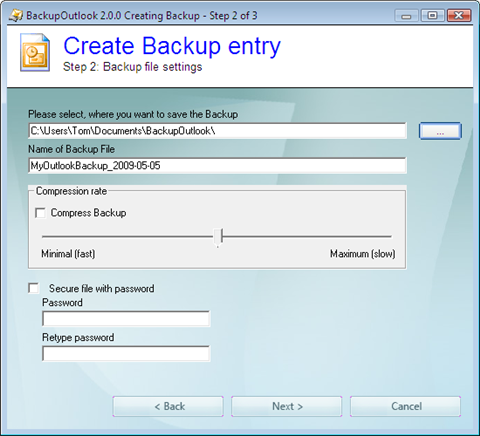
Now you can adjust the settings for the backup entry.
First choose the location where you wish to save the backup file.
Then, if required, you change the compression rate. It's up to you whether speed or file size is the priority
Finally you can secure your backup with a password if required.
When you are ready then click on 'Next' to go to step 3.
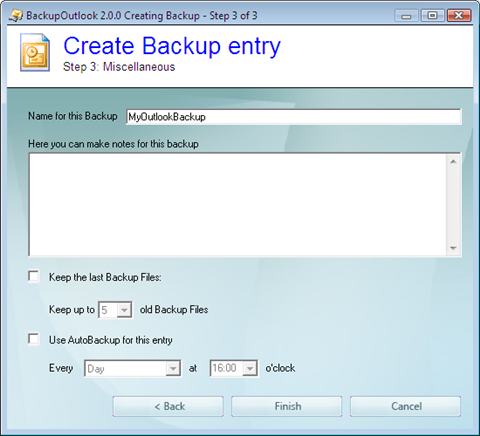
In this final step, you choose a name for the backup entry.
You can also optionally add notes to describe the backup content. This can make restoring data easier.
BackupOutlook also allows you to keep the last x versions of your backup. This is an extremely effective safety net, should you accidentally overwrite your single good backup with a bad one.
If required you can then set a specific time to automatically run this backup.
Finally click on 'Finish' to end the creation of this Backup entry.
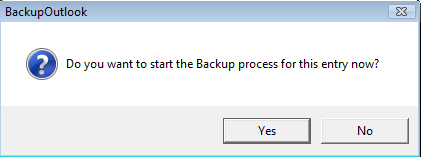
You will be asked if you want to start the Backup immediately:
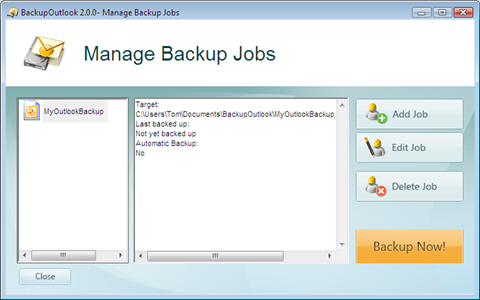
The main screen now lists the newly created backup job:
You see how easy it is to create a backup of your Outlook?
With only a few clicks you can sleep better, safe in the knowledge that all of your vital data is backed up.
Don't wait until it's too late!